To effectively monitor your app’s performance on the Apple App Store, Apple provides App Analytics, a powerful set of insights that helps you understand user behavior, engagement, and growth.
These analytics enable you to evaluate performance, optimize the user experience, and make data-driven decisions to improve your app’s reach and success.
How to view app analytics on the Apple App Store
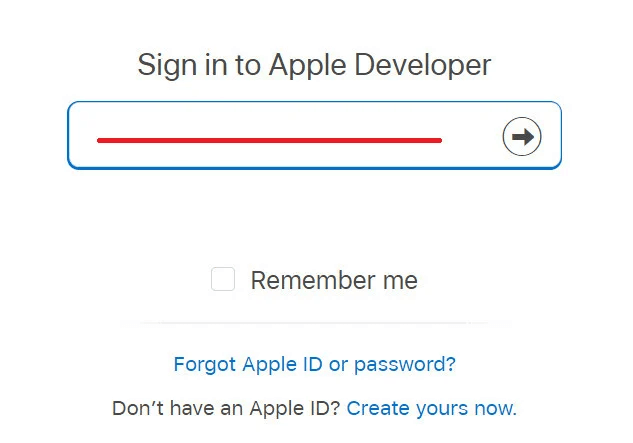
Sign in to Your Apple Developer Account
Log in to your Apple Developer Program account via Account – Apple Developer.
At this stage, you may be prompted to enter a verification code sent to your registered mobile number.
📖 Learn more:
- Creating an Apple Developer Account (Company or Organization)
- Creating an Apple Developer Account (Individual)
- Creating an Apple Developer Account via the mobile app
Access analytics from Program Resources
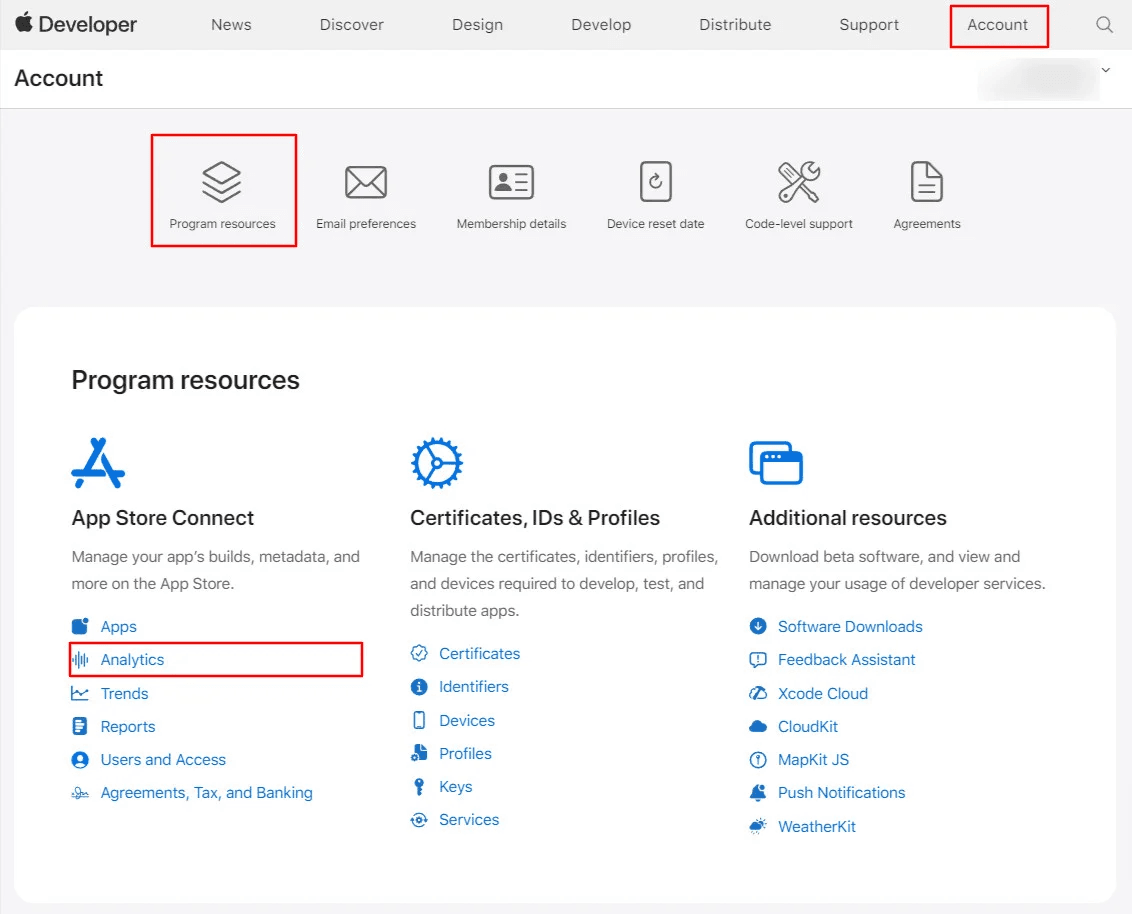
After signing in:
- Click Program Resources
- Select Analytics
Open App analytics in App Store connect
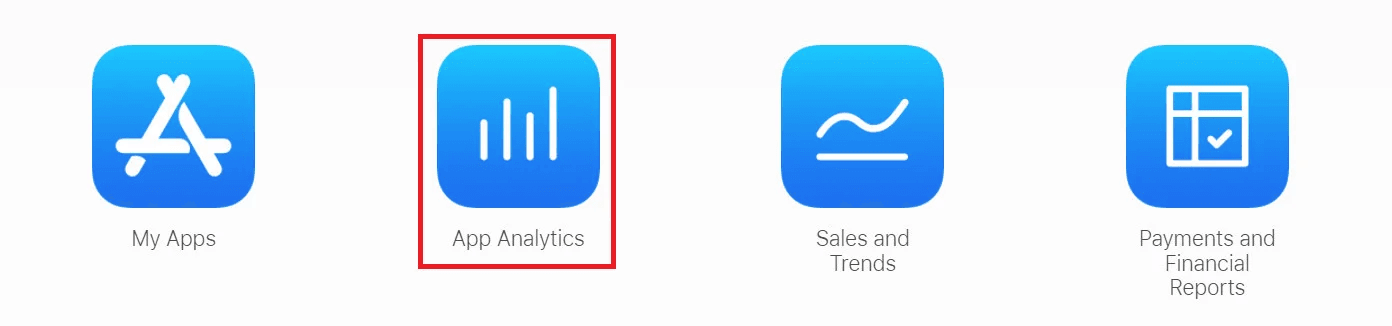
From the App Store Connect services page:
- Click App Analytics
Select the app you want to analyze
You’ll see a list of all apps associated with your account, each with a brief performance summary.
Select the app you want to review.
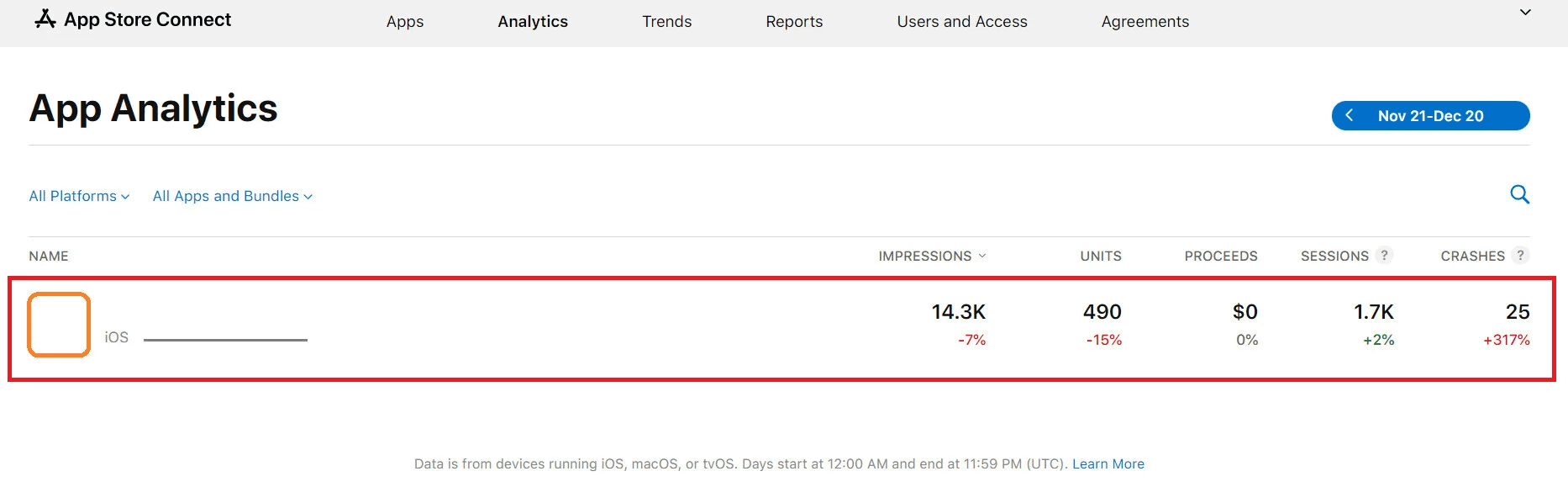
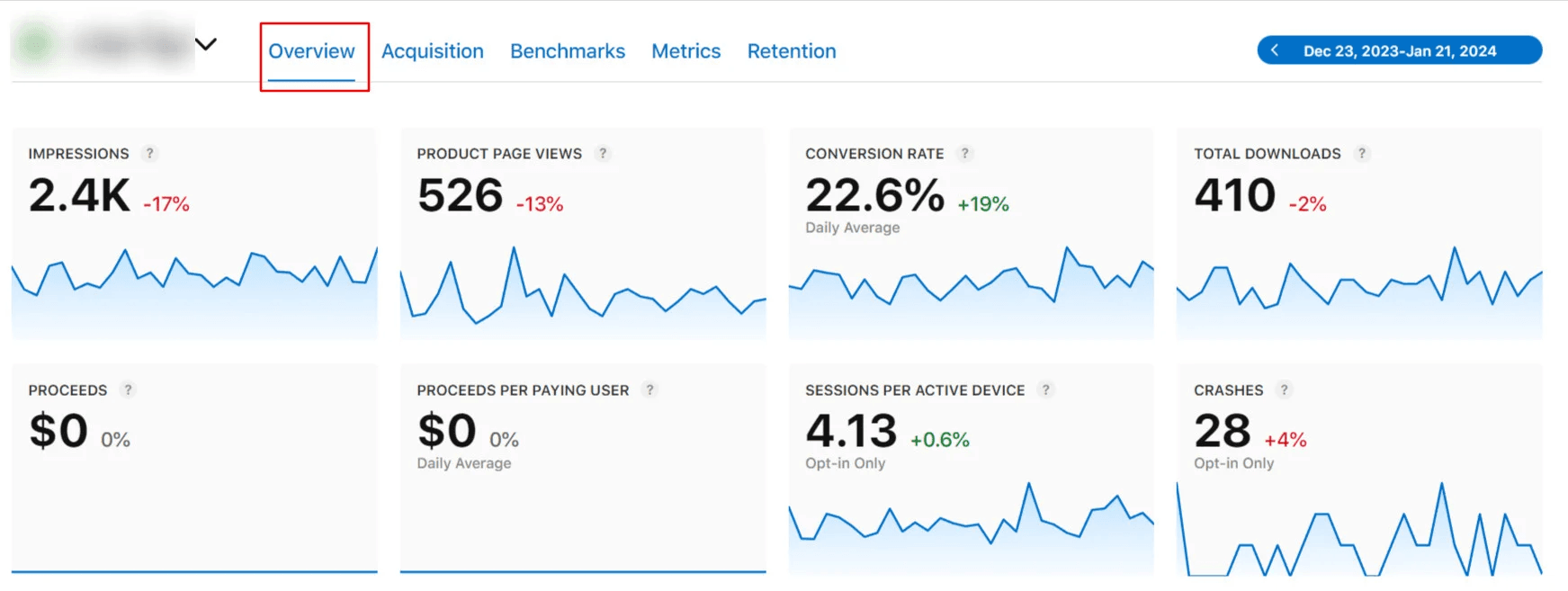
A summary of the app’s performance over the last 30 days will appear.
App Analytics overview
The most important section for understanding your app’s performance is the Overview page. It provides a high-level snapshot of key metrics, including:
- Impressions – Number of times your app appeared in the App Store
- Product Page Views – Views of your app’s App Store page
- Conversion Rate – Percentage of users who downloaded the app after viewing the page
- Total Downloads – Total number of app installs
- Proceeds – Revenue generated (relevant for paid apps)
- Proceeds per Paying User – Average revenue per paying user
- Sessions per Active Device – Average daily sessions per active device
- Crashes – Number of app crashes experienced by users that caused the app to close
Additional sections include:
- Global distribution map showing where users are located
- Acquisition sources indicating where users discovered your app
- Device types used to download and run the app
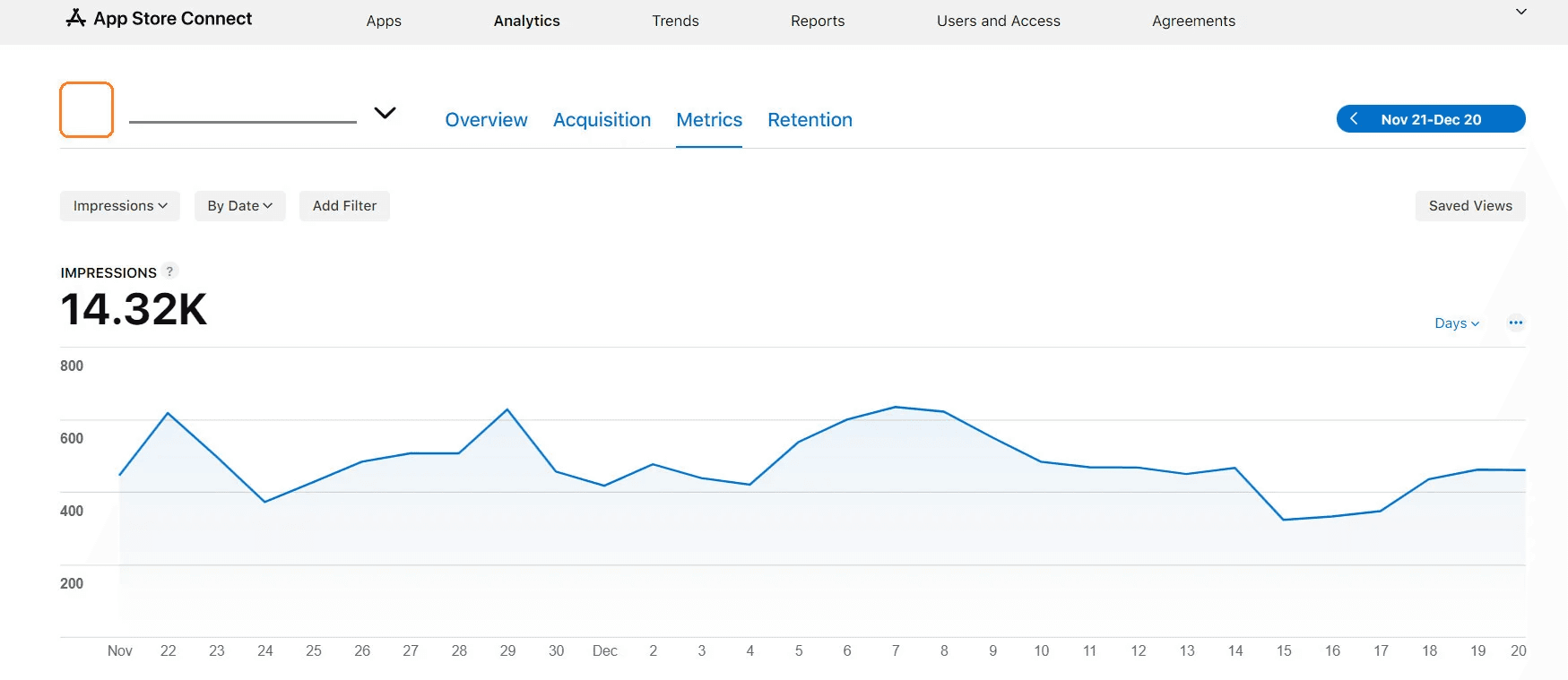
You can click on any metric to view detailed insights—for example, selecting Impressions to see deeper performance data.
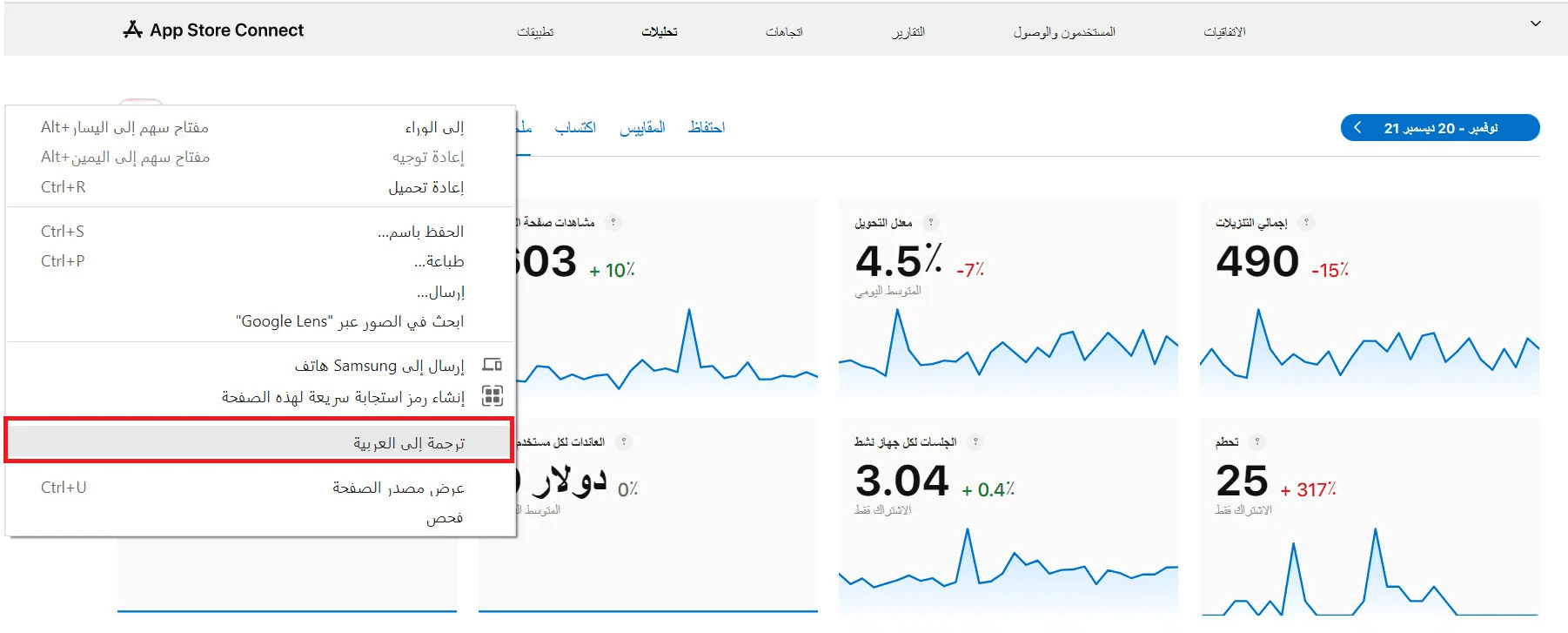
🔔 Note: App Analytics is not currently available in Arabic. You may use your browser’s built-in translation feature if needed.
Frequently asked questions
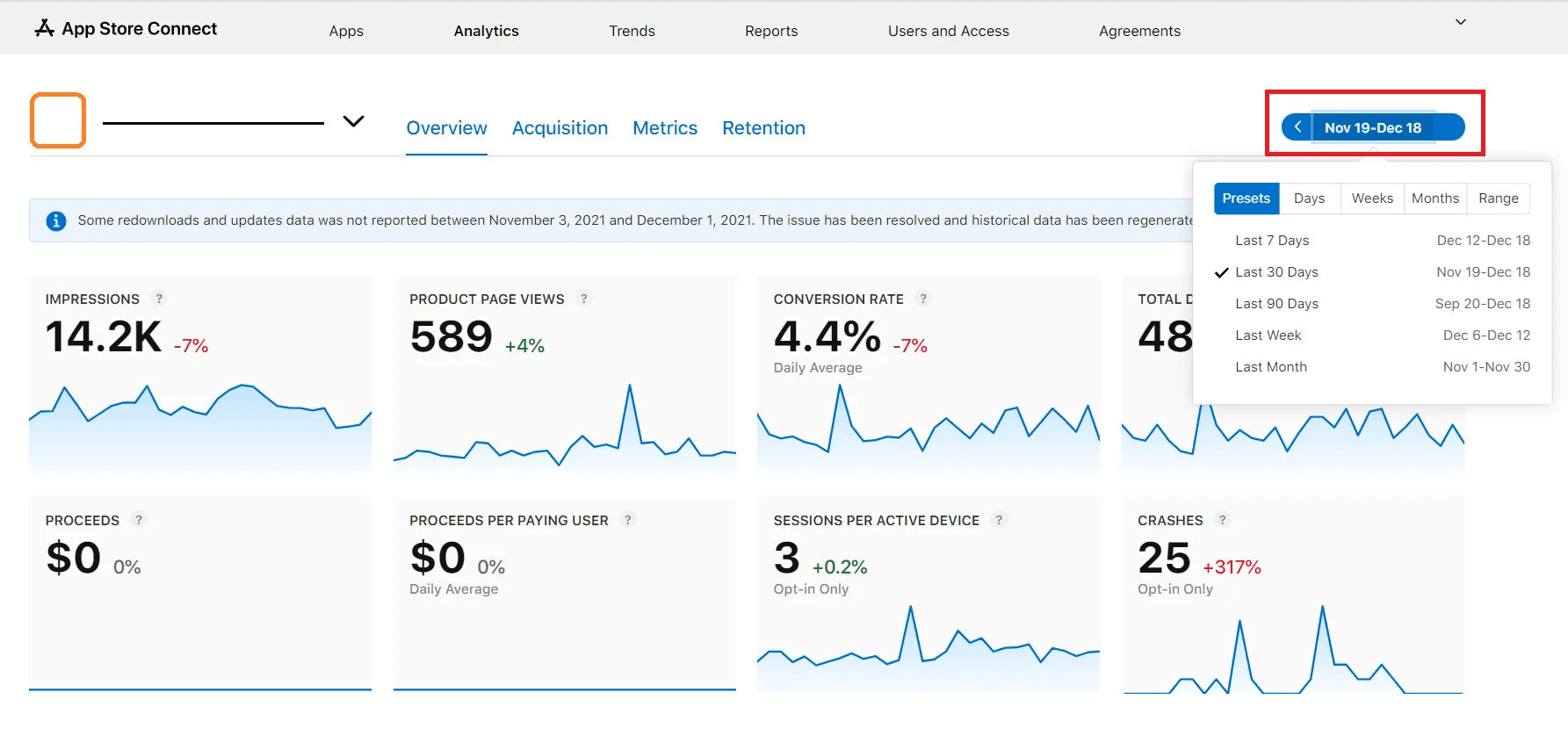
How can I change the date range for analytics?
From the Overview tab:
- Click the date selector
- Choose the desired date range from the list
How can I customize the global distribution map report?
From the Overview tab:
- Use the geographic filter
- Select the report type you want to display
The map will update accordingly.
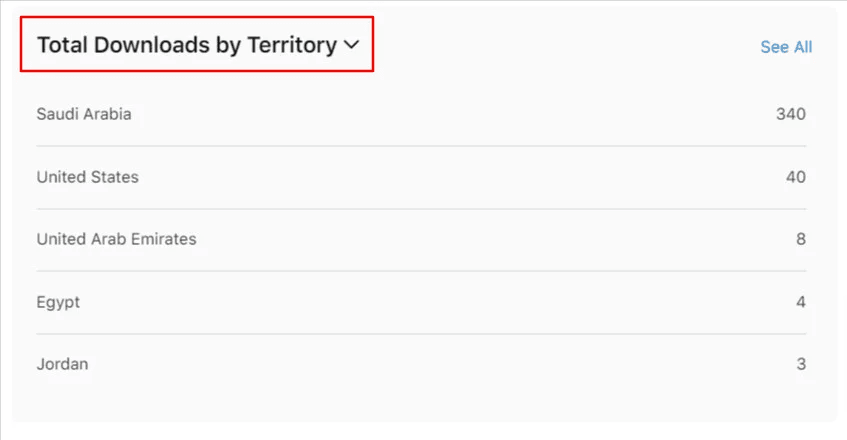
How can I see where my app users came from?
From the Overview tab:
- Select the Source filter
- Choose the report you want to view
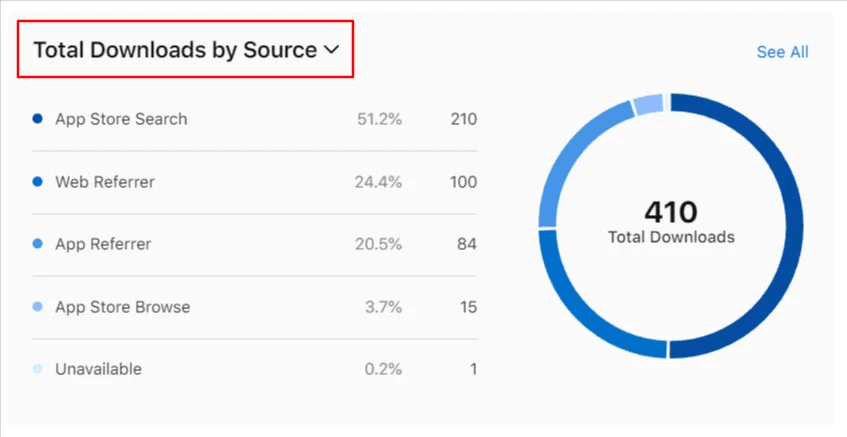
Available acquisition sources include:
- App Store Search
Users who found your app by searching or clicking it in the App Store, including Search Ads.
- Web Referrer
Users who clicked a link from a website that directed them to your App Store page.
- App Referrer
Users who clicked a link from another app that opened your App Store page. This includes apps using the StoreKit API—especially useful for marketing campaigns.
- App Store Browse
Users who discovered or downloaded your app while browsing App Store sections such as featured charts or categories.
How can I see which devices my app was downloaded on?
From the Overview tab:
- Select the Device Type filter
- Choose the report you want to view
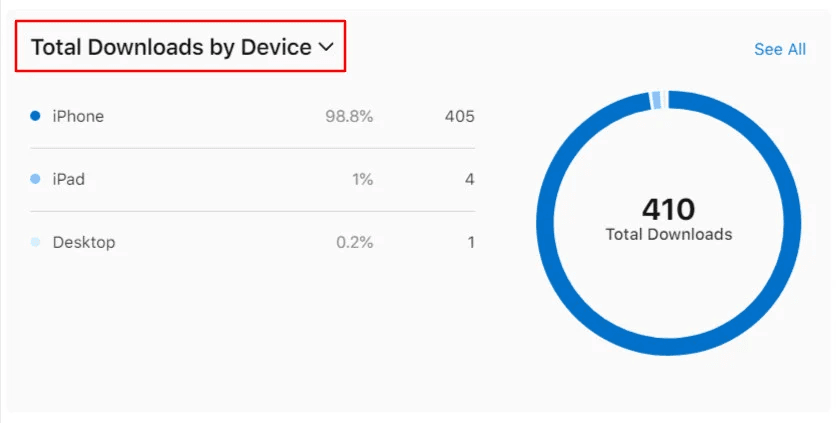
This allows you to analyze downloads by iPhone, iPad, and other supported devices.