Growing your store is not just about traffic. It is about how well you turn visitors into customers and customers into repeat buyers.
Privy is a powerful all-in-one ecommerce marketing platform that helps you do exactly that. From email marketing and SMS to pop-ups and automated campaigns, Privy gives you the tools to connect with your customers, recover lost sales, and scale revenue from a single dashboard.
This guide explains how to connect Privy to your store step by step and start using it effectively.
What is Privy?
Privy is a multi-purpose e-commerce marketing tool designed to help merchants maximize the impact of their digital marketing channels.
With Privy, you can:
- Run email marketing campaigns
- Send SMS messages
- Create high-converting pop-ups
- Automate abandoned cart recovery
- Manage all campaigns from one unified dashboard
You can use one channel or combine all of them for a fully connected marketing strategy that drives measurable growth.
Stage one: Create a new Privy account
- From the Privy registration page, choose the sign-up method that suits you and create a new account.
- After completing the required registration details, you will be redirected to the Privy dashboard.
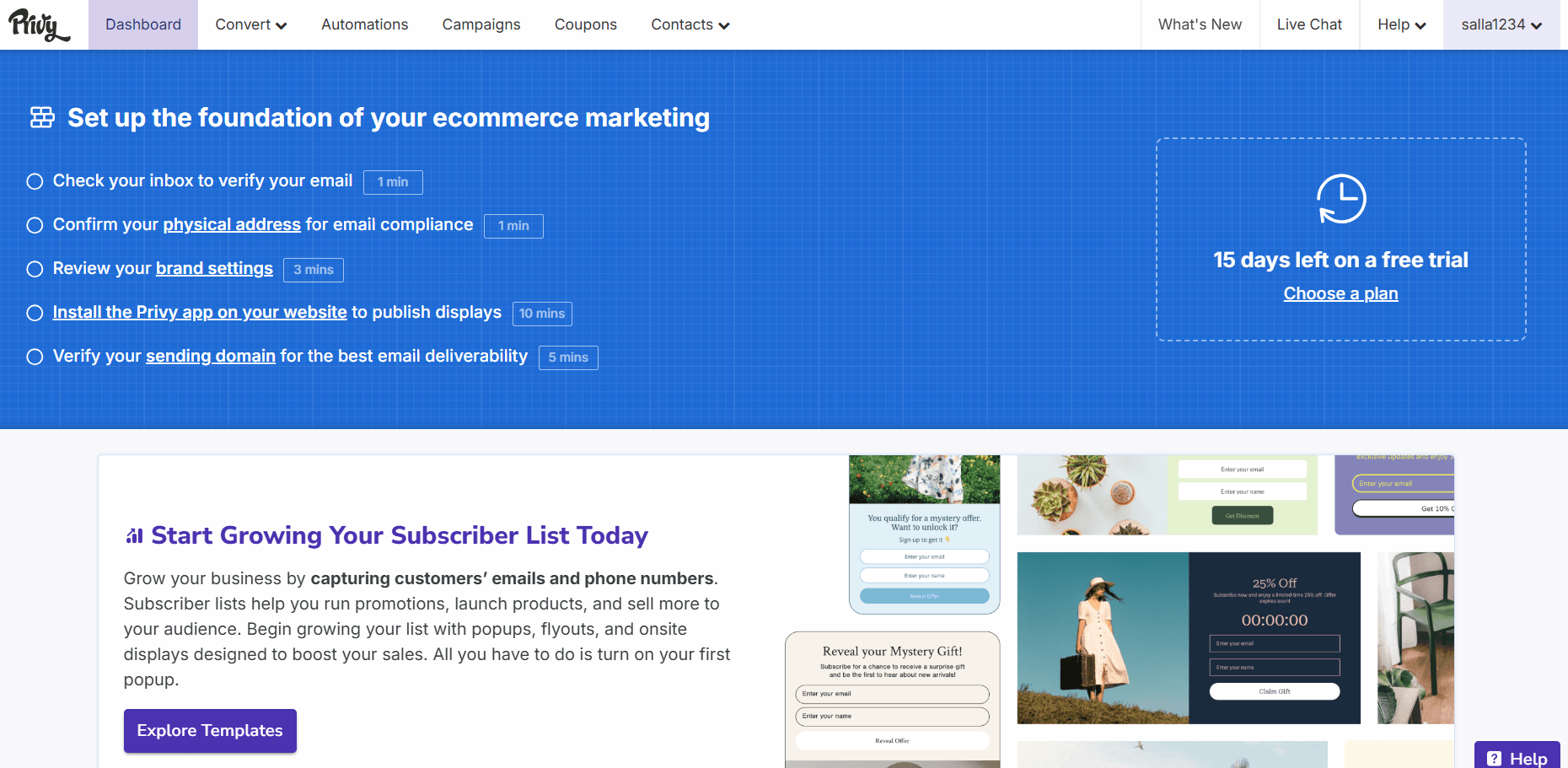
- Complete your account setup. One of the most important steps is adding your store URL.
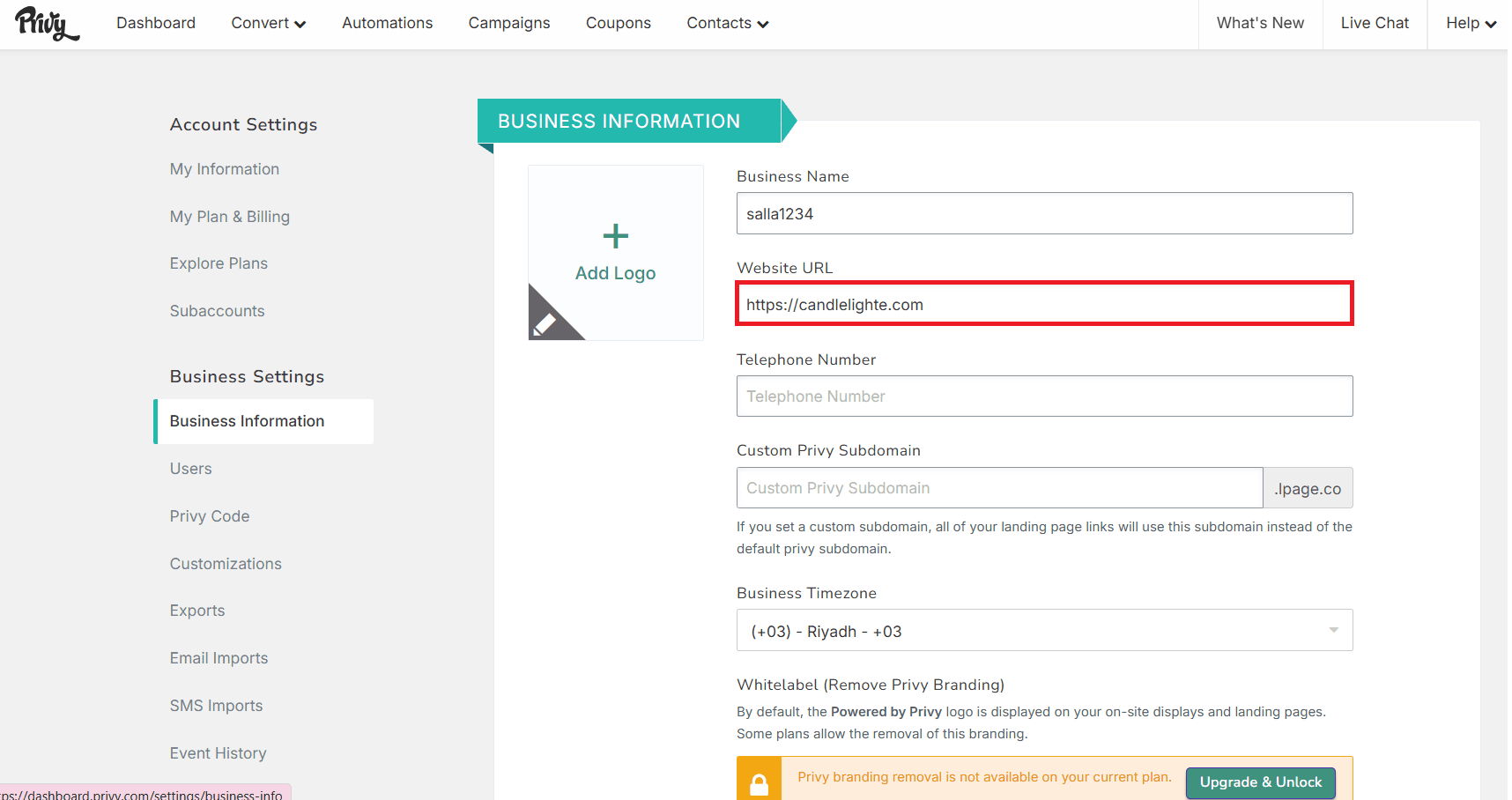
- From your account menu, click Account Settings.
- From the dashboard, click Business Information, enter your store URL in the designated field, then click Save changes.
📝 Note: You can skip this step if you already have an existing Privy account.
Stage two: Copy the Privy tracking code
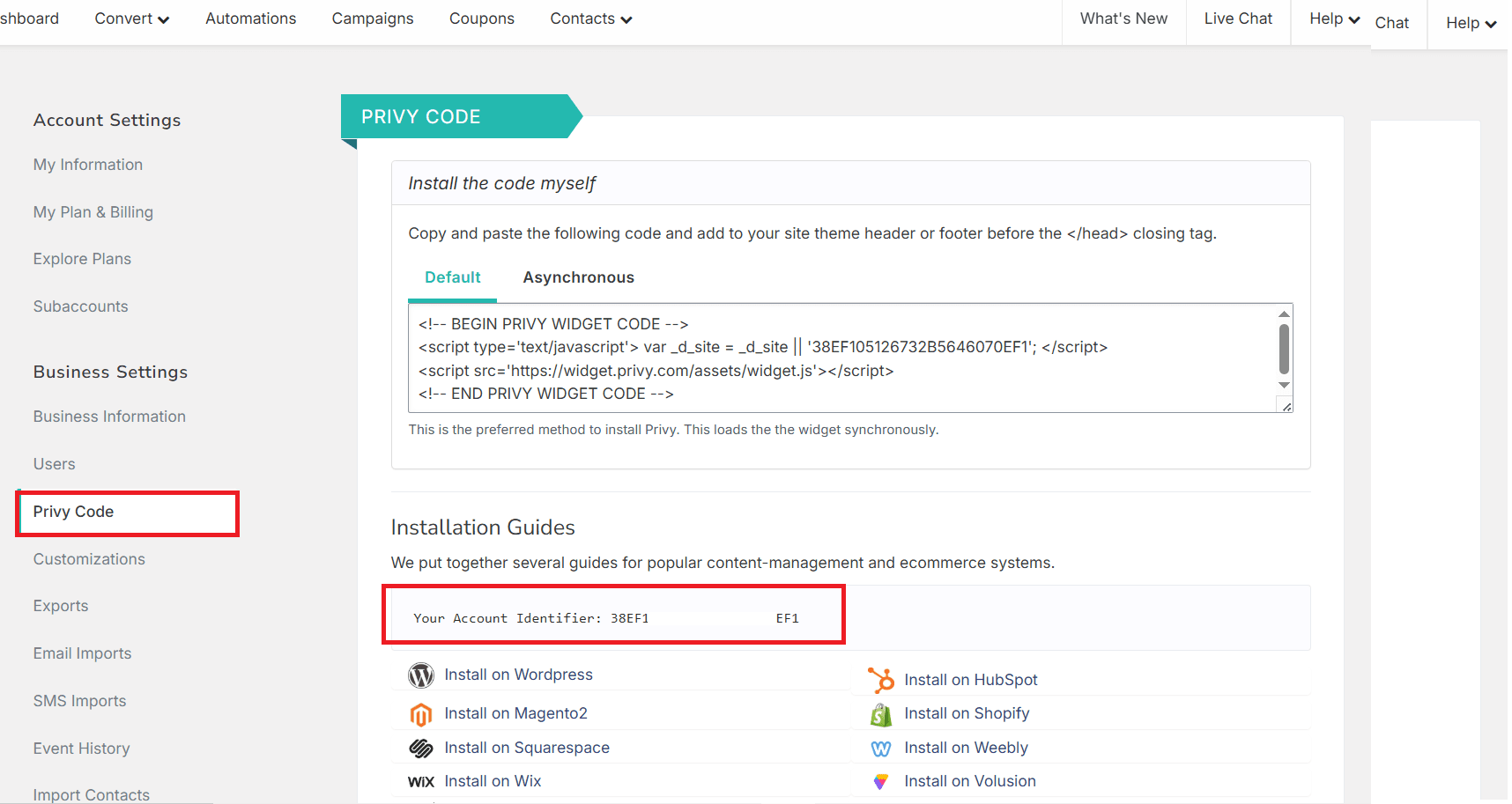
- From your Privy account settings, click Privy Code.
- Copy your Privy Account Identifier. You will need this code to complete the integration.
Stage three: Install the Privy app on your store
- From the main menu, click All, then under tools, select App Store.
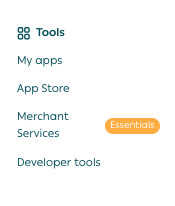
- Use the search bar to find Privy.

- From the Privy app page, click Install.

- Review the required permissions, then click Add app.
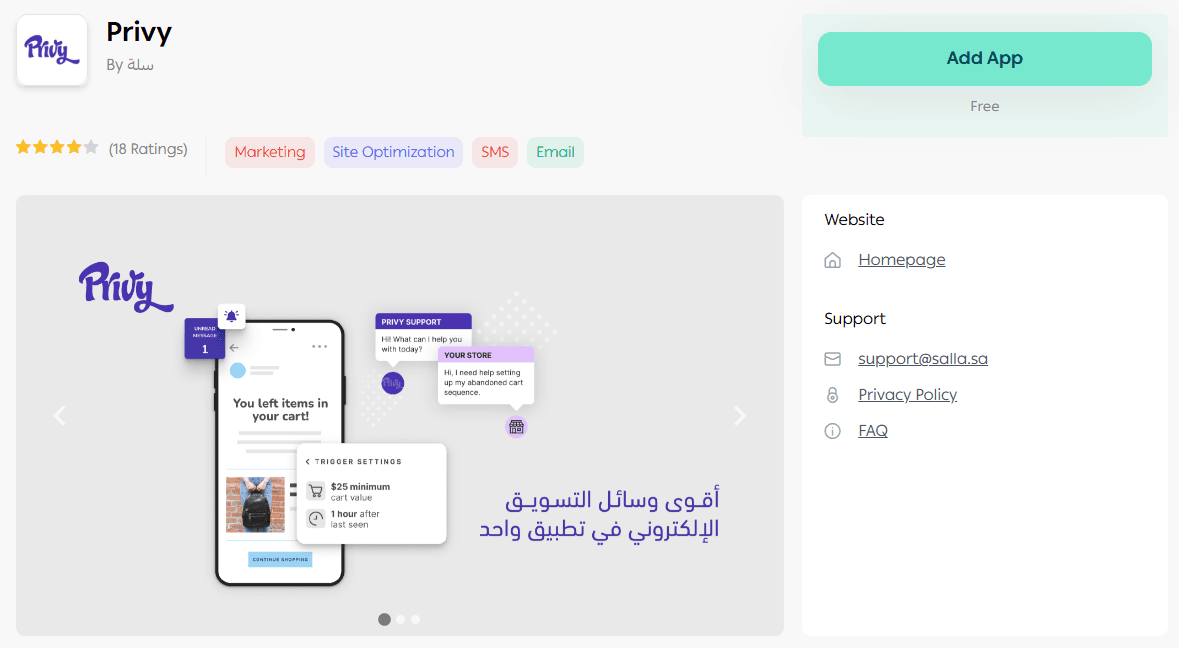
Once installation is complete, the Privy app will appear in your list of installed apps.
Stage four: Activate the Privy app
- From the Privy app page, click Activate App.
- Paste the Privy Account Identifier you copied earlier into the required field.
🎉 Congratulations! Privy is now successfully activated on your store and ready to use.
Frequently asked questions
What are the key features of Privy?
Privy offers advanced ecommerce marketing capabilities, including:
Abandoned cart targeting
- Display a custom exit pop-up when a customer is about to leave the store
- Automatically send SMS reminders if a cart is left inactive
- Send automated abandoned cart emails using customizable templates
High-impact pop-ups without disrupting the customer experience
- Interactive pop-ups such as spin-to-win wheels, discount prompts, and newsletter sign-ups
- Ready-made and custom designs that match your brand identity
Unified marketing campaign management
- Coordinate email, SMS, and pop-up campaigns from one dashboard
- Track performance and revenue impact automatically
Email marketing automation
- Design professional email newsletters with flexible templates
- Schedule campaigns and control send times
- Send automated welcome emails to new visitors
- Manage abandoned cart reminders
- Automatically send transactional updates such as invoices and shipping status
How can I remove the Privy app from my store?
- From the main menu, click More, then select Installed Apps.
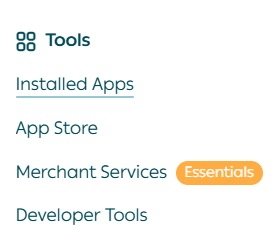
- From the list of installed apps, locate Privy, click App Options, then select Delete App.