Booking products in Salla allow you to offer services that depend on scheduled dates and times, such as consultations, appointments, classes, or sessions. The booking system gives you full control over availability through a structured schedule managed directly from your store dashboard.
This guide explains how to create and manage booking products professionally, helping you organize reservations efficiently and provide customers with a smooth, reliable booking experience.
📌 Article overview
Adding and managing a booking product:
- Basic product information
- Advanced settings
- Quantities
- Order form
- Booking schedule
- Custom fields
Add and Manage a Booking Product
1. Go to Products
From the main menu, click Products.

2. Create a New Booking Product
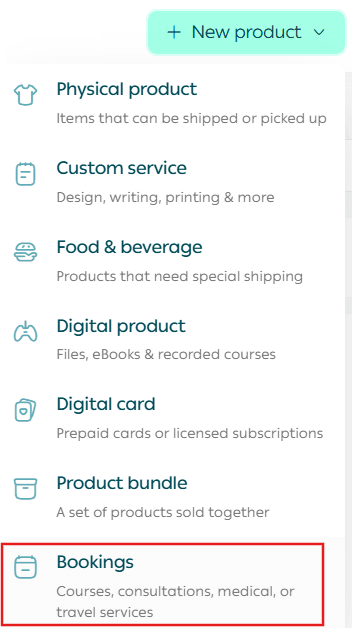
From + Create New Product, click Add, then select Bookings.
1. Basic Product Information
Enter the basic product details, then click Save.
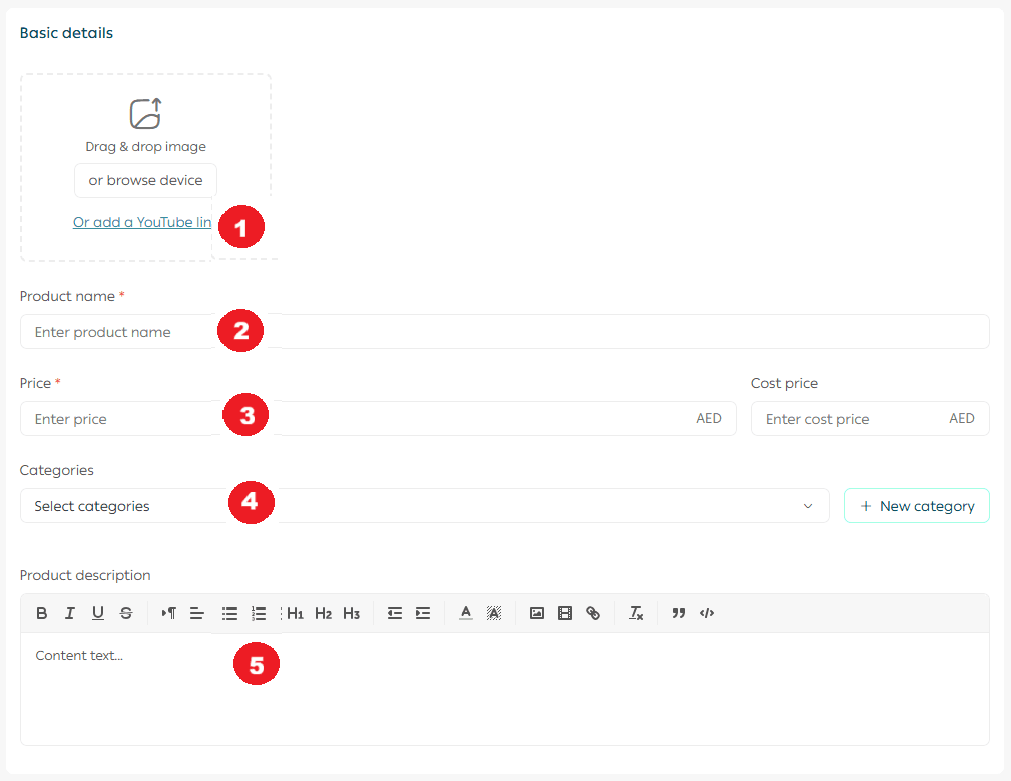
Required fields
- Product images
Upload one or more images that represent the service.
For more details, see Upload Product Images and Videos.
- Product name
The name that customers will see when booking.
- Product price
The selling price of the booking, along with an optional cost price for profit tracking.
- Product category
Helps organize booking services, manage reports, and control display.
- Product description
Add a detailed description explaining the service, duration, benefits, and what the customer should expect.
You can format text and add images, videos, and links.
2. Advanced Settings
1. Product subtitle
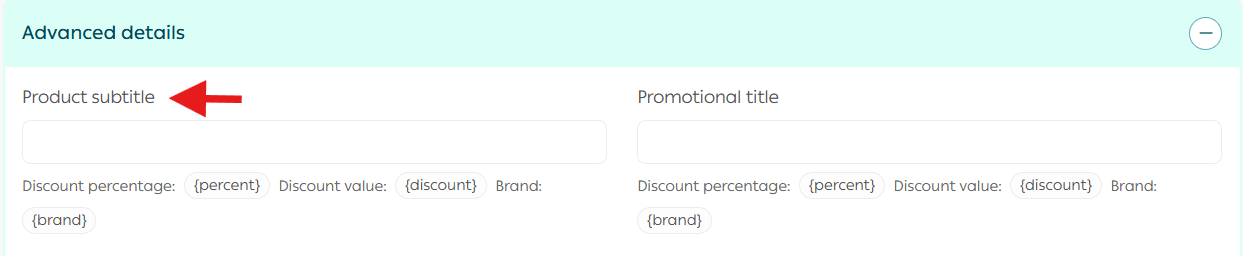
Displayed as a highlighted detail under the product name.
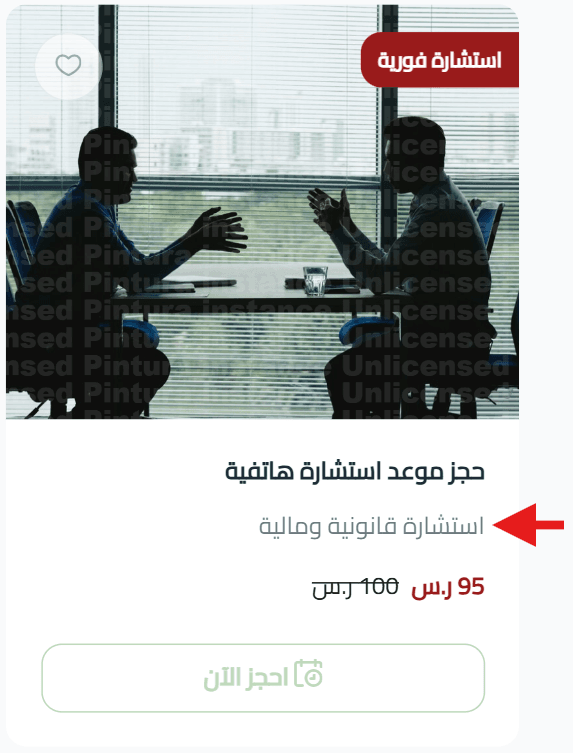
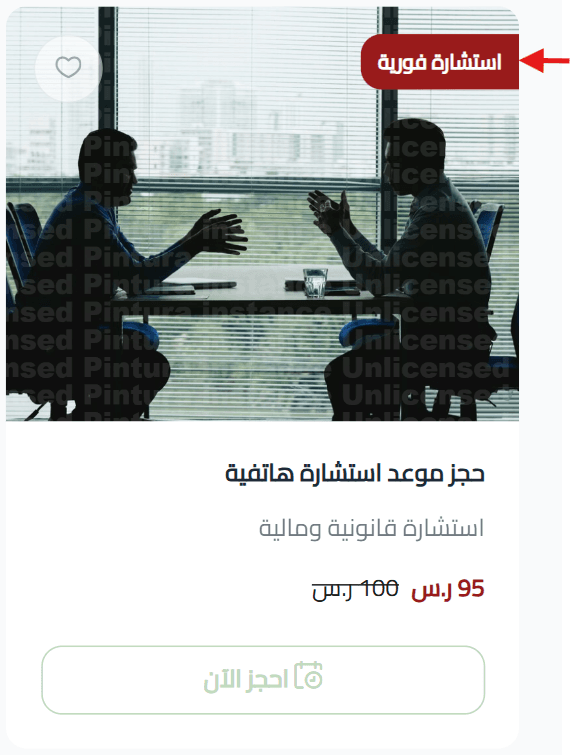
2. Promotional title
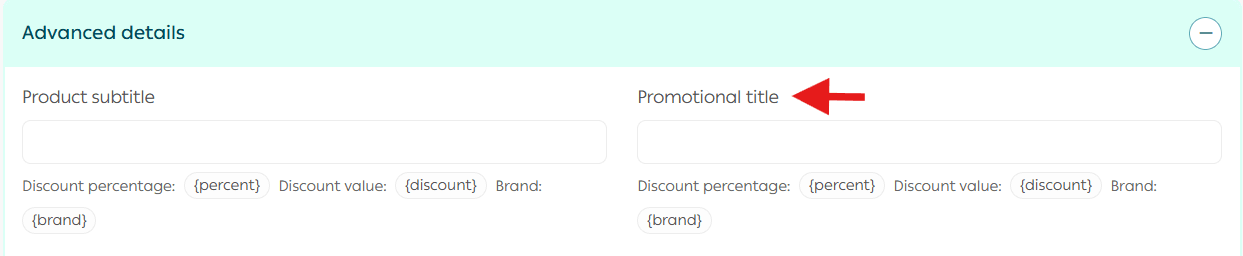
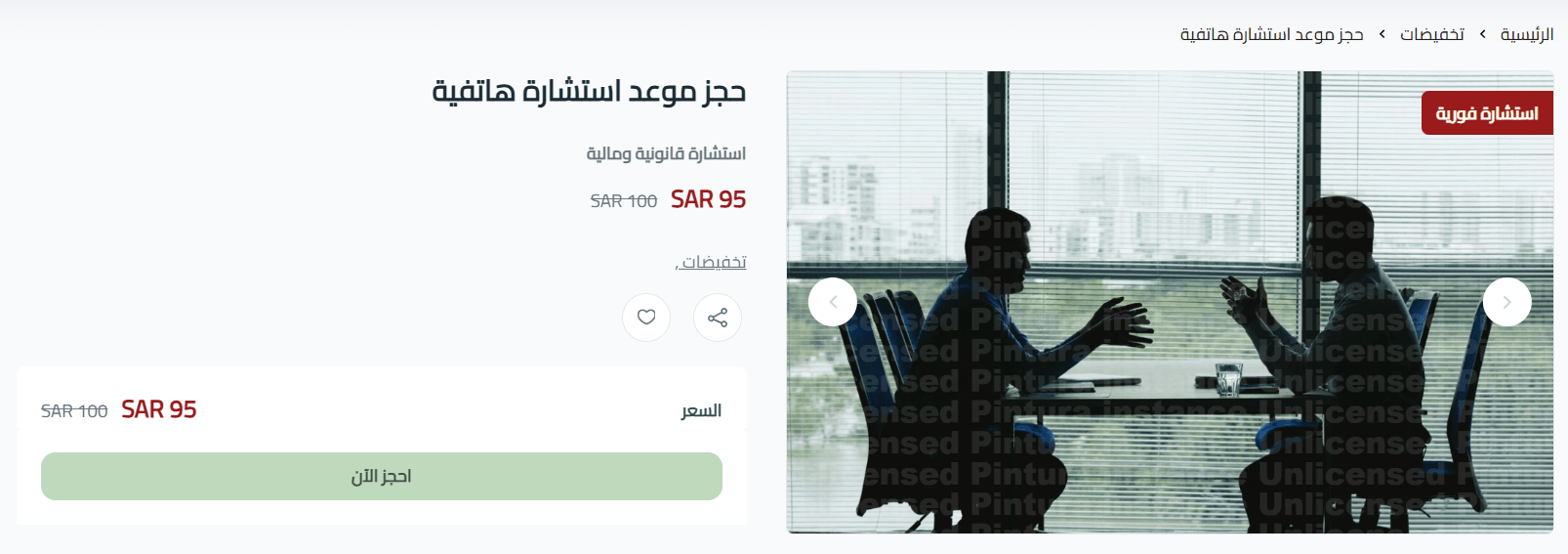
Appears on the product image to attract attention to a feature, offer, or benefit.
3. Discounted price and schedule
Set a discounted price if you are running a promotion, along with start and end dates.

The discounted price will appear clearly to customers during booking.
4. Sales channels
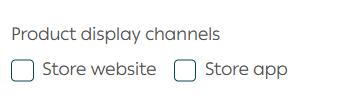
Control whether the booking product appears on:
- Store website
- Store mobile app
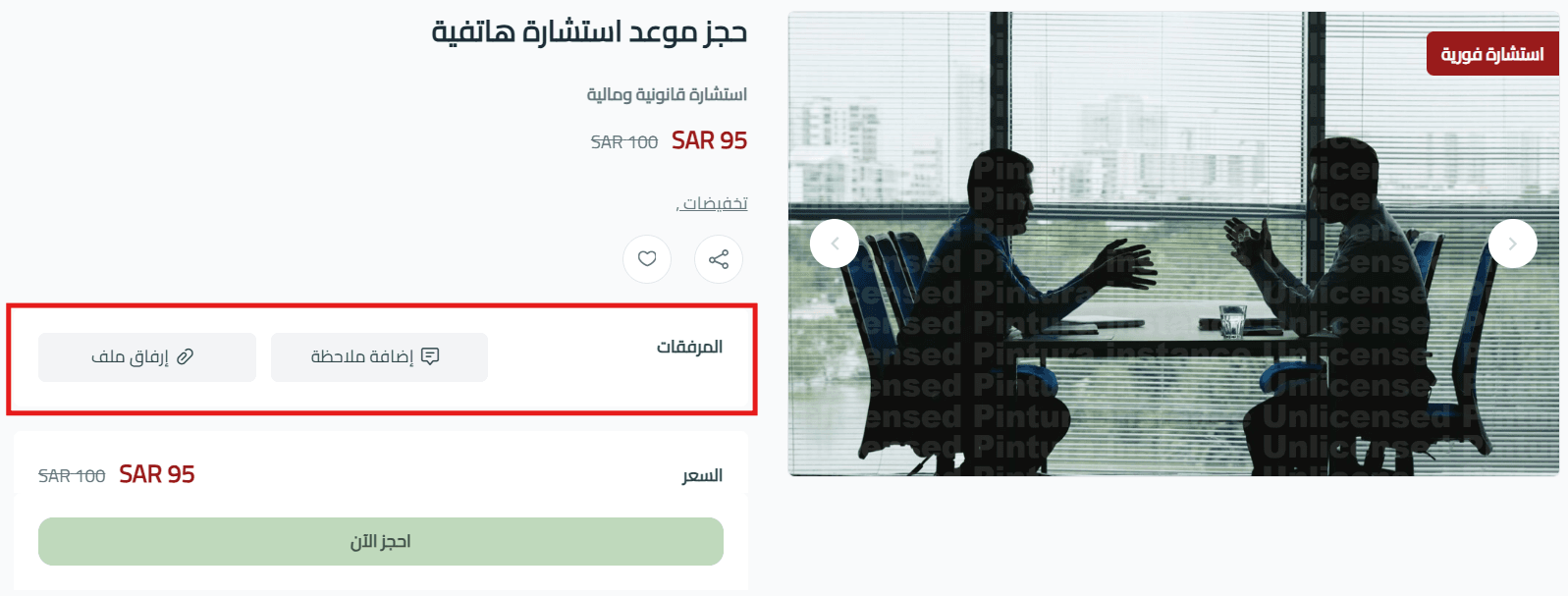
5. Product requirements

- File upload on booking
Allow customers to upload a file during booking, such as reference images or documents.
- Order notes
Enable customers to leave notes or instructions with their booking.
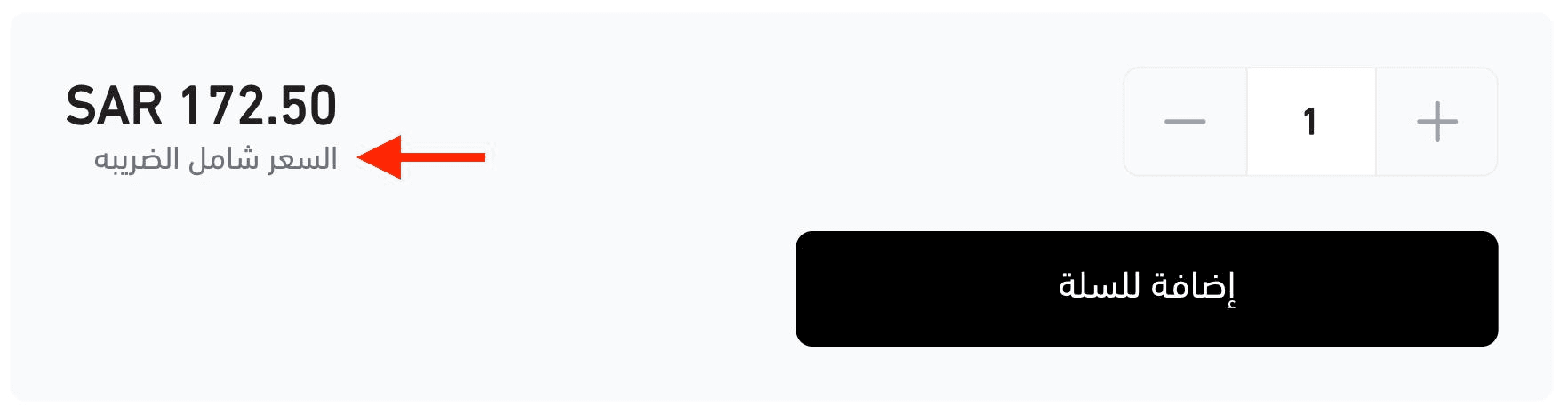
- Taxable product
Specify whether the booking service is subject to tax. A tax notice will appear next to the price if enabled.
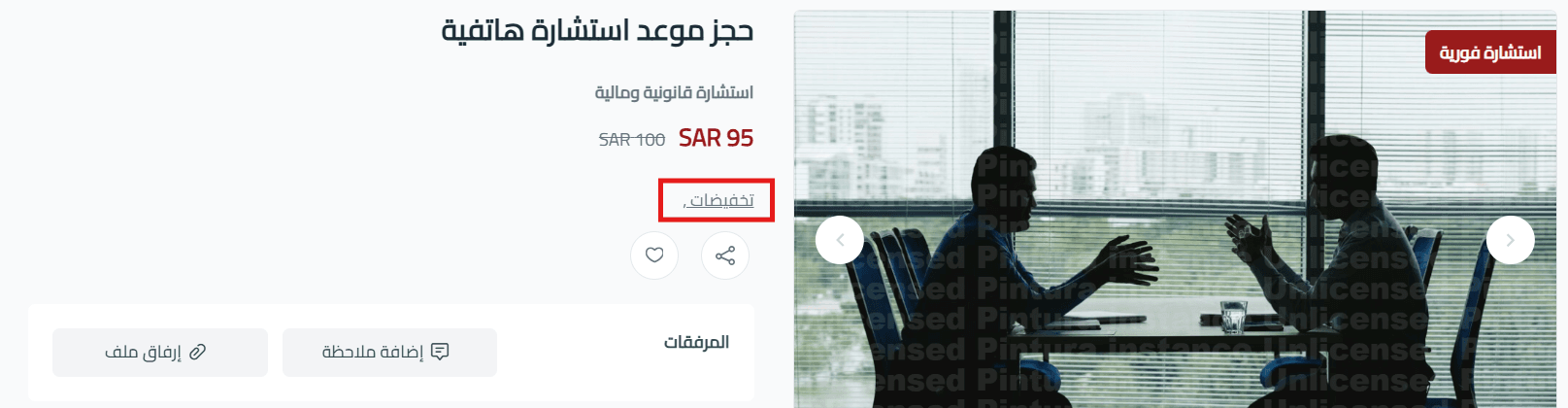
6. Product tags
Add multiple tags to help customers discover related booking services.

Tags appear on the product card and link to other products with the same tag.
7. SEO optimization
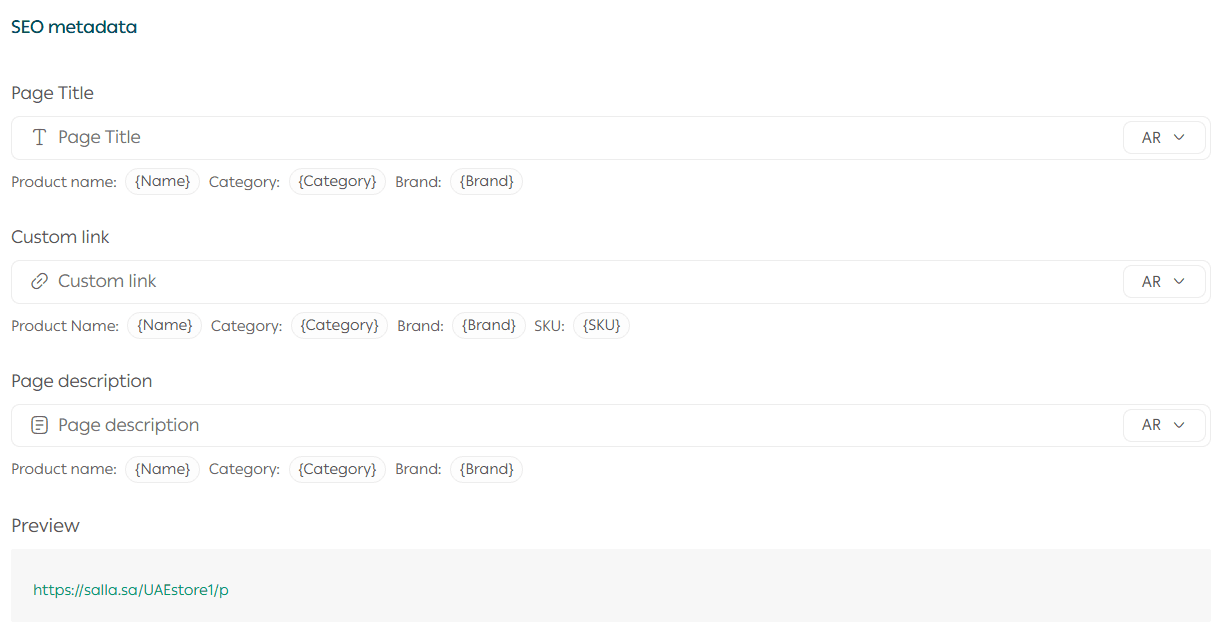
Improving SEO helps your booking services appear in search results and attract more customers. Salla provides built in SEO tools:
- Product page title
Include the service name and category.
- Custom product URL
Create a clean and descriptive URL using the product name, category, and SKU.
- Meta description
Write a short description that explains the service and encourages booking.
Benefits of adding SKU to the product URL
- Better search engine indexing
- Easier differentiation between similar services
- Faster access when managing or sharing links
SEO reminder: Clear URLs and optimized descriptions improve discoverability and booking conversions.
3. Order Form
You can add different types of fields to the booking order form to collect required information.
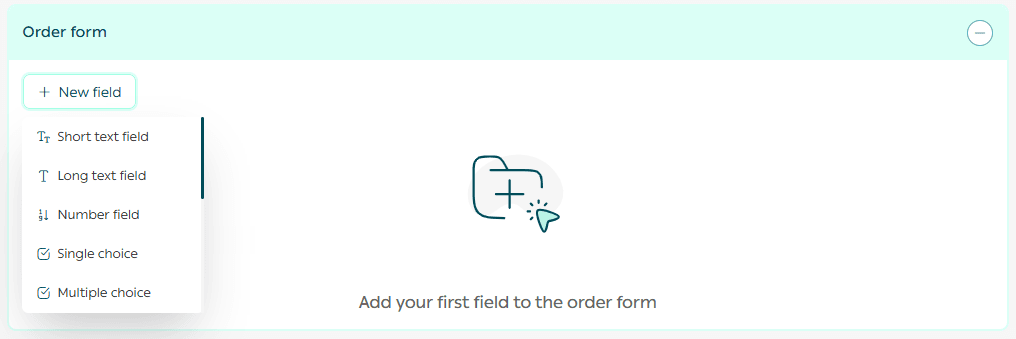
Supported field types
Booking products support advanced fields such as:
- Image upload
- Location selection
- File upload
- Color selection
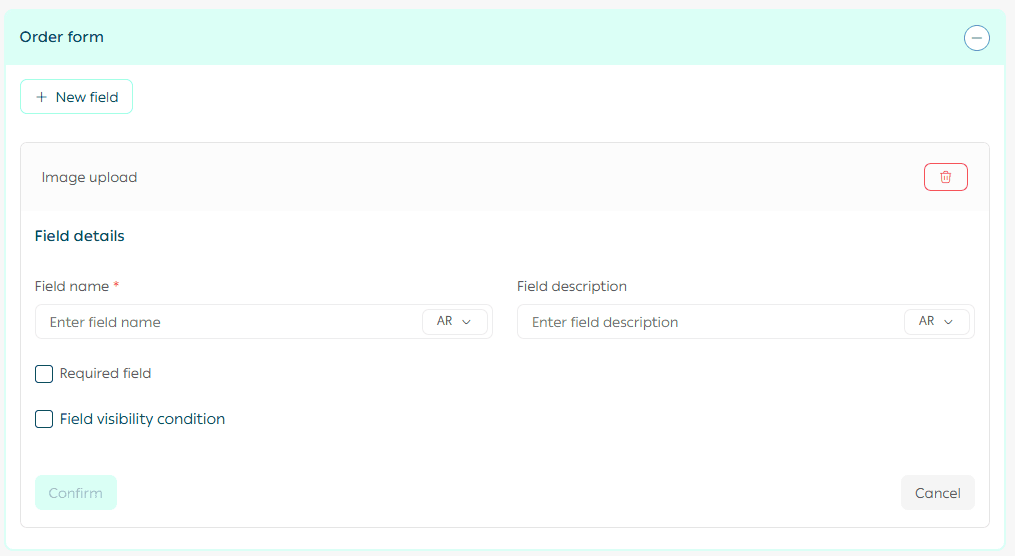
Add an image upload field
To enable image uploads in the order form, add an image field and enter its details.
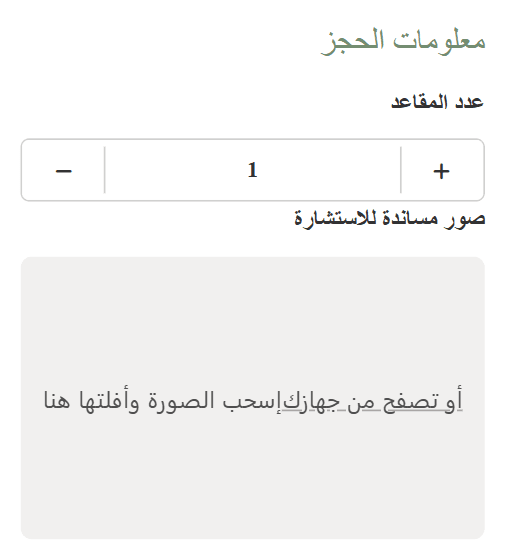
Customers will see this field during checkout.
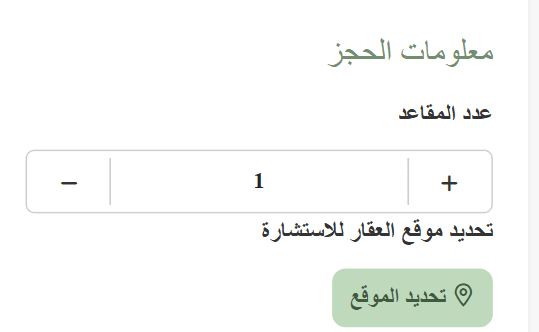
Add a location selection field
Customers can select a location using an interactive map.
The selected location appears in the order details inside the dashboard.
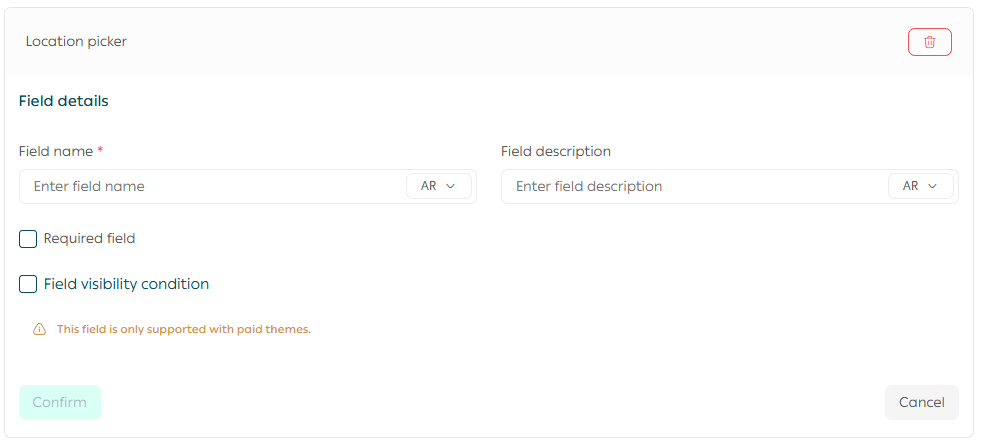
Important note: You can add one or more map fields.
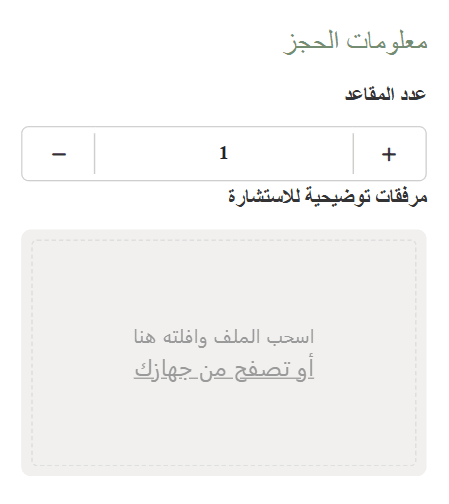
Add a file upload field
You can allow customers to upload files during booking.
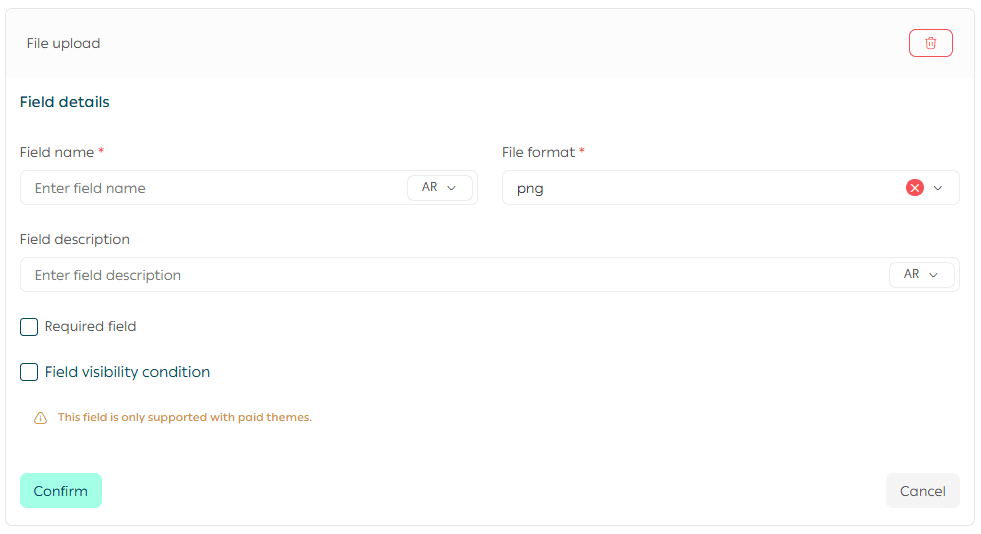
Field options include:
- Field name
- Field description
- Required or optional setting
- Conditional visibility
- Allowed file formats
Supported formats include png, jpg, pdf, Word, Excel, svg, and txt.
4. Booking Schedule
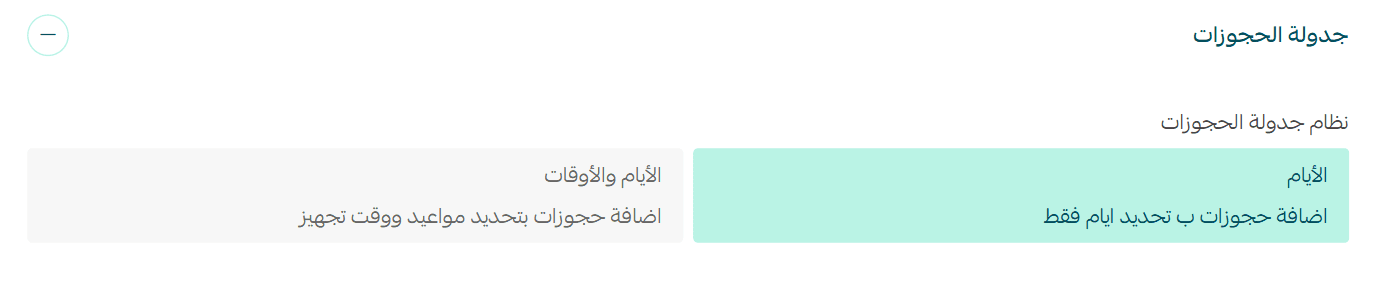
From the Booking Schedule section, choose the scheduling system that suits your service:
- Days only
- Days and time slots
Configure the schedule based on your availability.
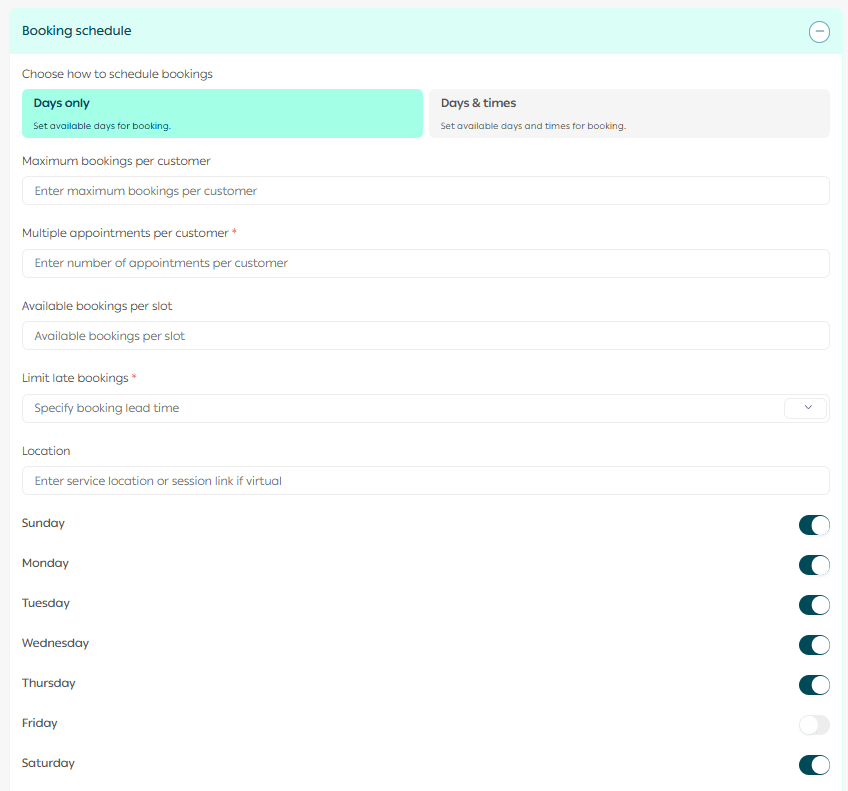
Exclude specific dates
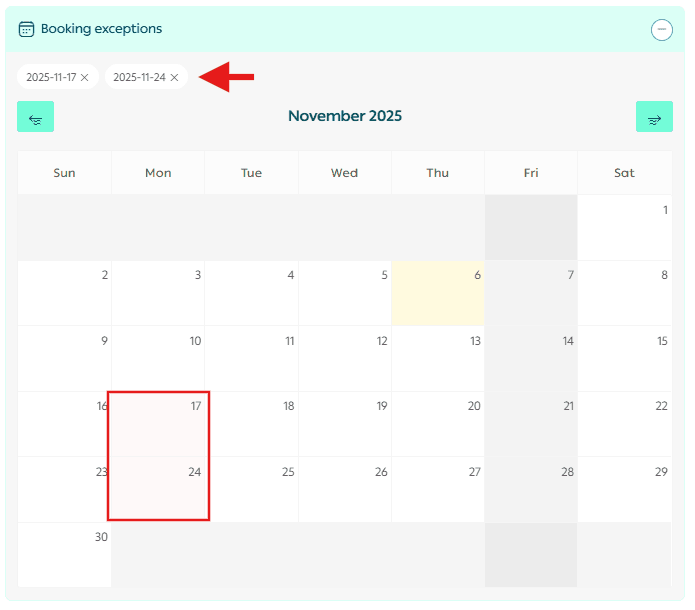
You can exclude certain dates each month so customers cannot book them.
Select the dates you want to exclude or remove them using the X icon.
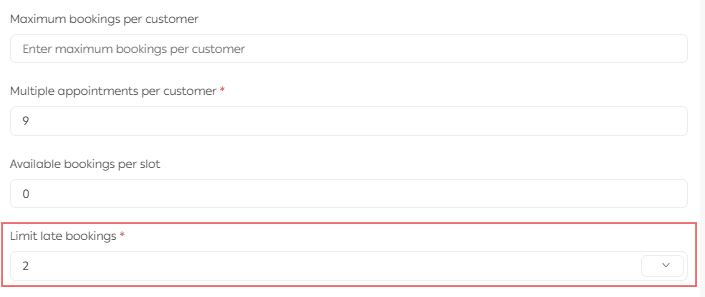
Disable late booking limits
To remove the minimum advance booking requirement, set the value to zero and save the session settings.
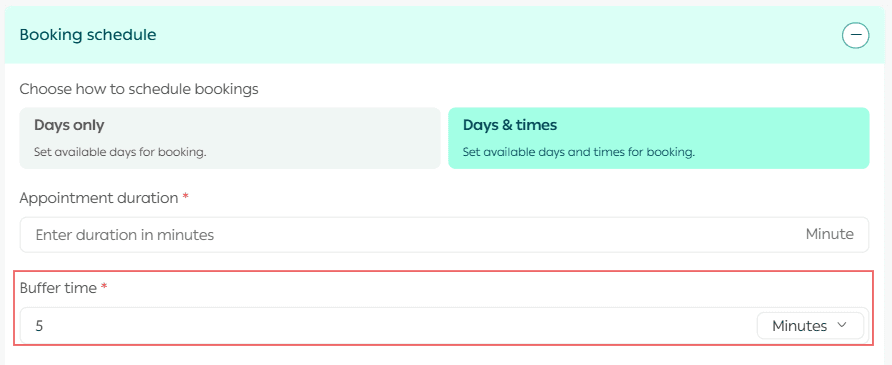
Disable preparation buffer time
If you do not need preparation time between appointments when using time based scheduling, set the preparation time to zero.
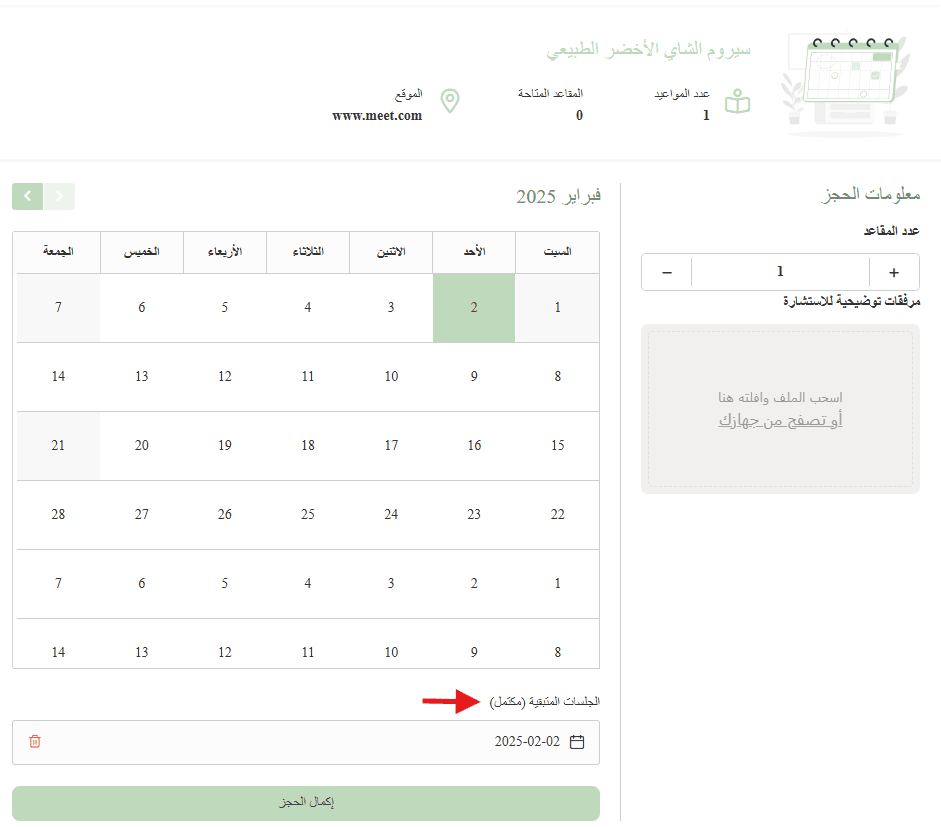
Full day booking for one customer
To allow only one booking per day, set the available quantity to one.

The date will appear as fully booked, preventing additional reservations for that day.
5. Custom Fields
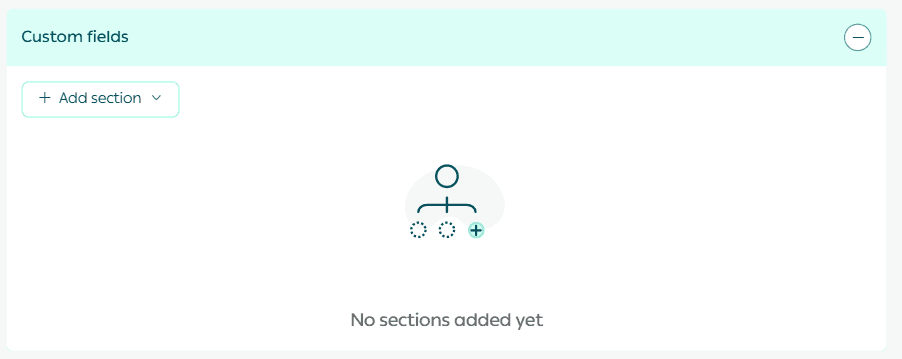
Custom fields allow you to add extra booking information and choose whether it appears on the product page.
Example: If you offer multiple consultation types, you can specify the consultation category, such as legal consultation or financial consultation.
Frequently Asked Questions
How does a customer make a booking?
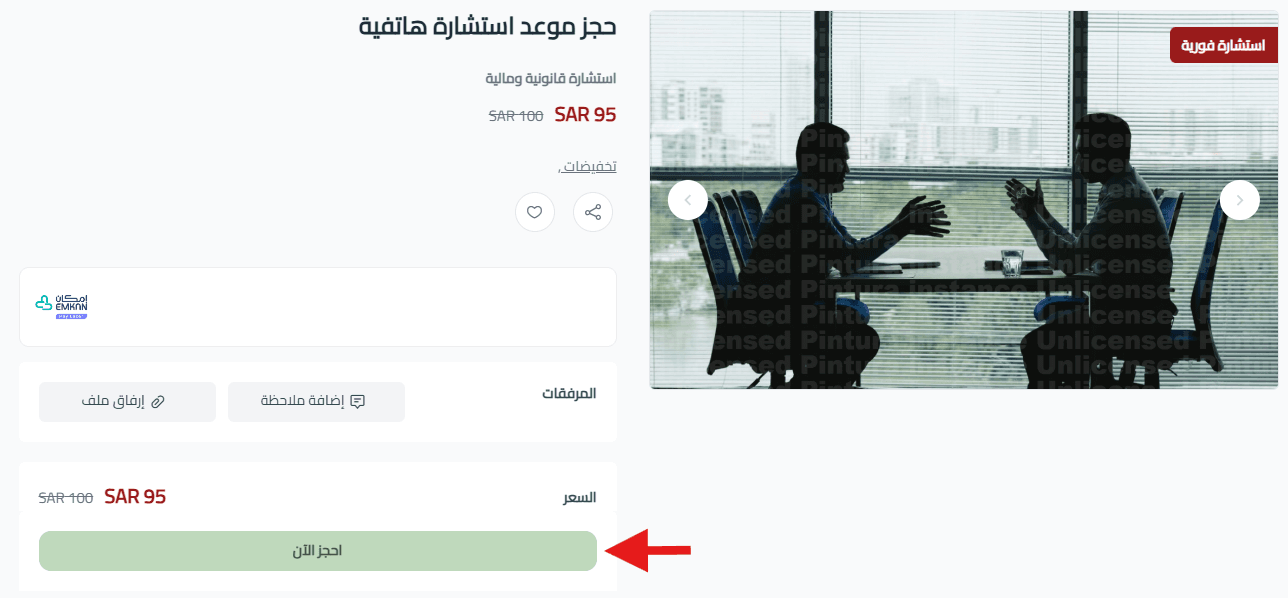
- The customer selects the booking product and clicks Book Now.
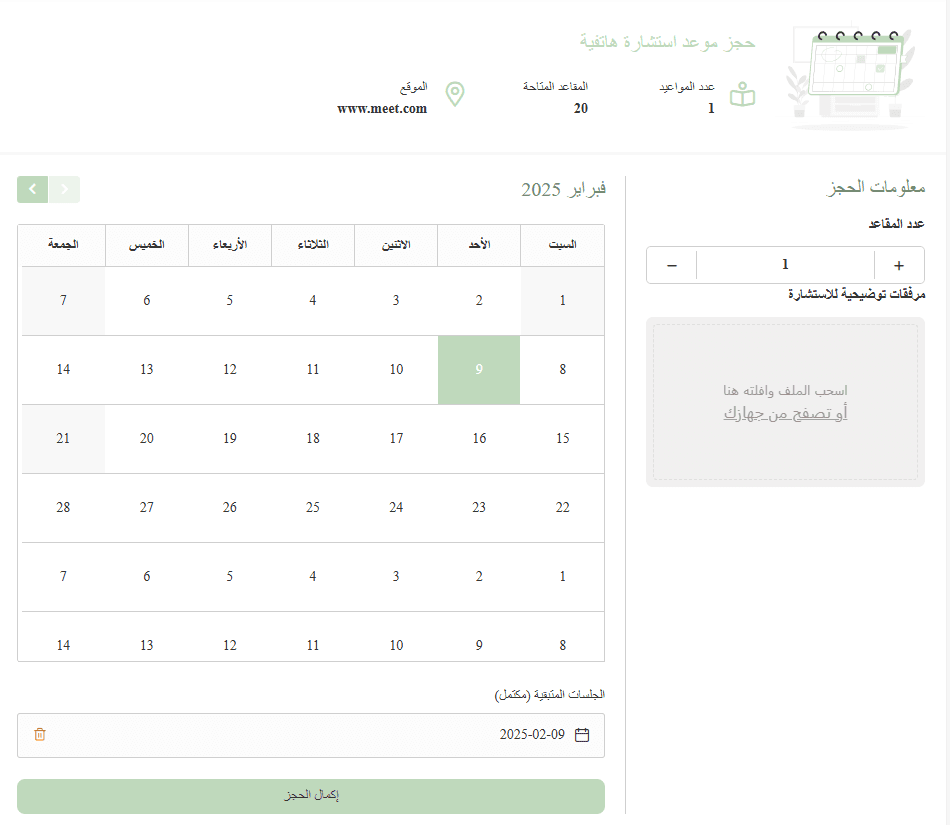
- Available dates and times appear. The customer selects a slot and clicks Complete Booking.
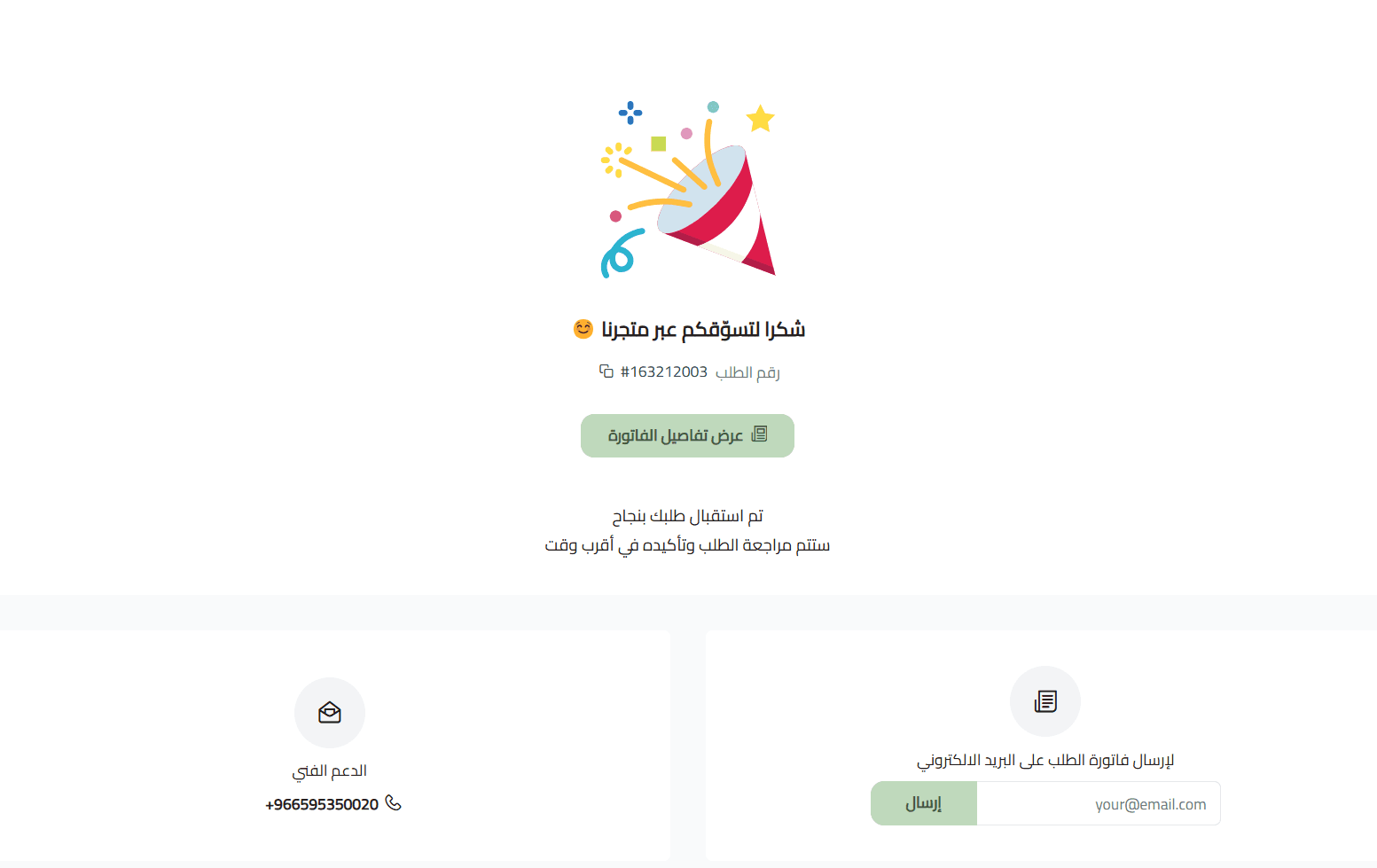
- After successful payment, the order number appears and the customer can enter an email address to receive the invoice.
Does seat availability decrease when choosing pay later?
No. A seat is reserved only after direct payment is completed.
Can I schedule bookings three months in advance?
Yes. You can schedule bookings up to twelve months ahead.
Can I set a custom time zone?
Currently, booking times use Saudi Arabia time only.
Can I combine booking products with regular products?
No. Booking products are handled separately.
Can I customize booking information based on my business?
Yes. This is done through the order form.
Can the merchant cancel scheduled bookings?
Yes.
For time based schedules, you can cancel by adjusting available days.
For day based schedules, you can cancel by adding date exclusions.
Can I customize the booking table design?
No. The table colors follow your store theme settings.
Can I control the latest time customers can book?
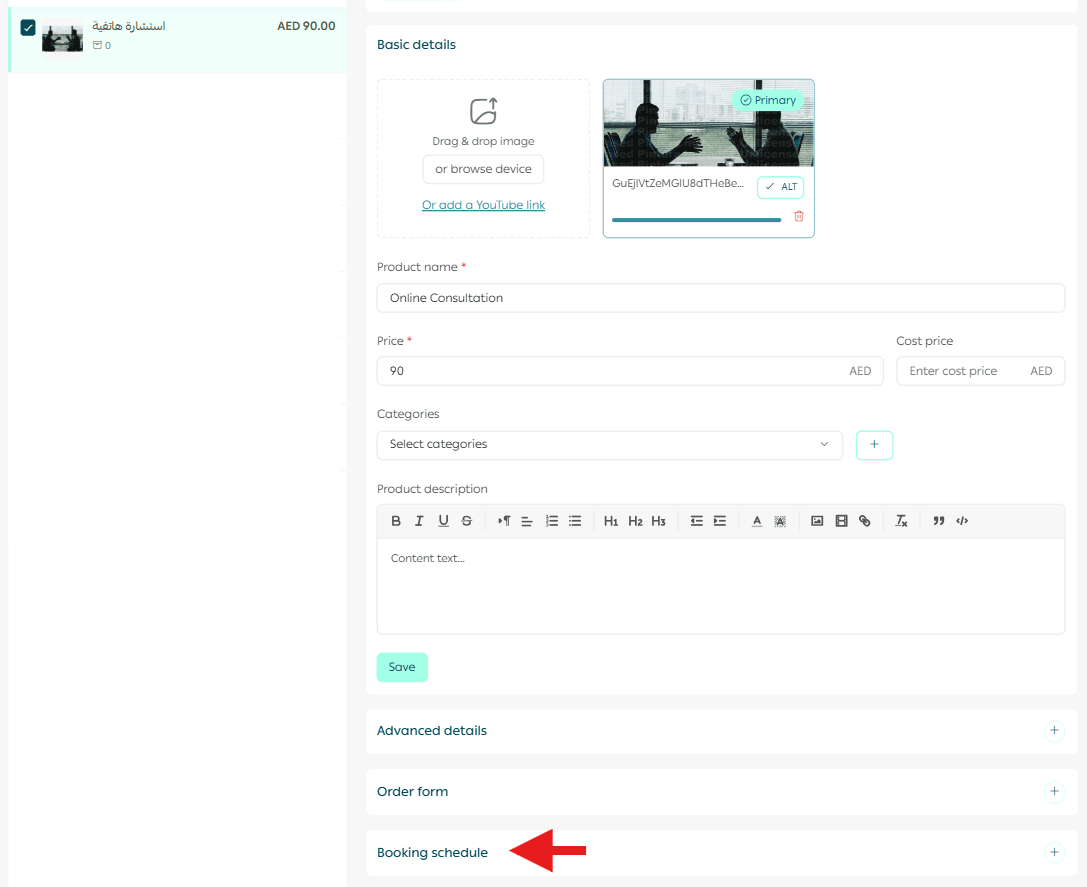
Yes. From the product details page, open Bookings from the product action bar and adjust the late booking limit.
Can I allow multiple sessions for the same product?
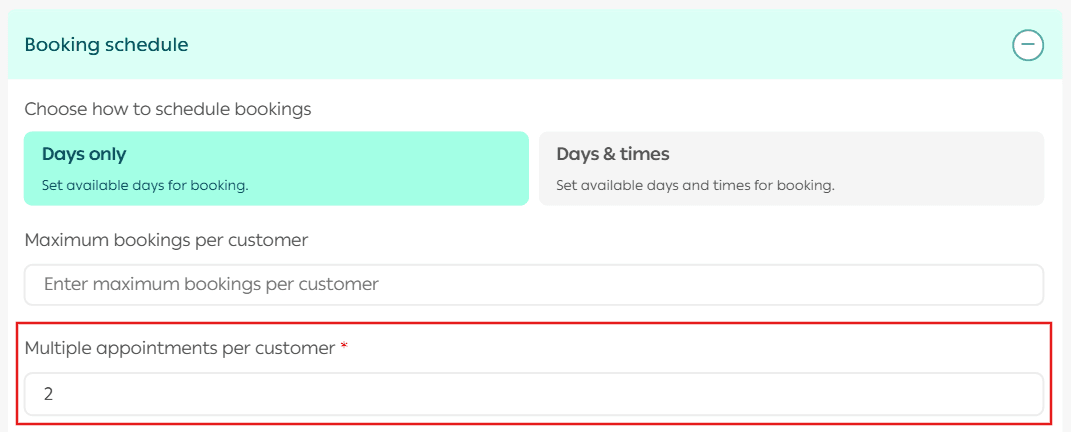
Yes. From the product details page, open Bookings, choose the scheduling system, and enable multiple sessions for the same customer.
How many fields can I add to the booking order form?
You can add up to ten fields per booking product.
For additional guidance, refer to the Product Card FAQs.